Android TV
You can install Castle Android TV on many TVs that run Android TV. This includes brands such as Sony, TCL, Hisense, Xiaomi, OnePlus, and Vu. If your TV allows APK installation, you can install Castle by following this guide.
Castle
Loading…
TV & FireStick
Install the official APK on Android TV, FireStick and compatible TV boxes.
Watching movies and shows on a TV gives you a bigger screen and a better viewing experience. Castle for TV lets you enjoy your favorite content from the comfort of your home.
Castle is an Android app that works on compatible Android TVs, Fire TV devices, and Android TV boxes. Since the app is not available in every TV app store, you need to install the APK file yourself.
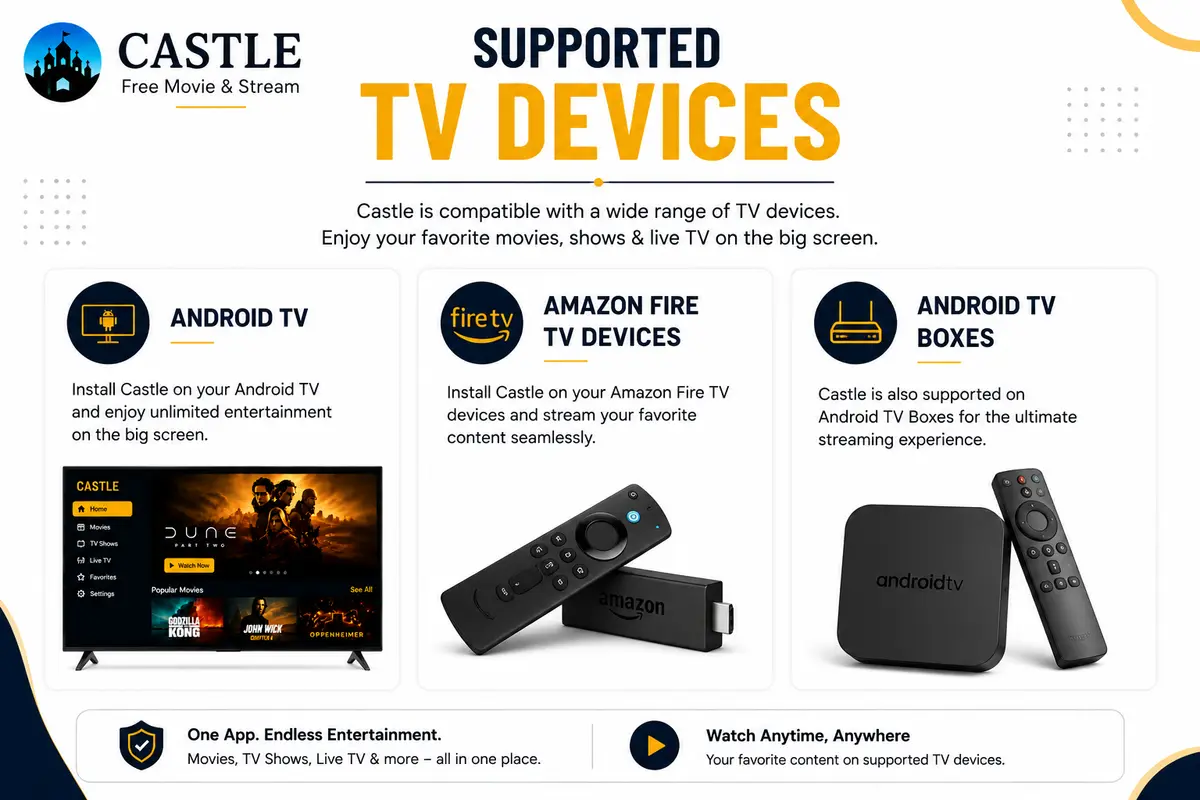
Castle for TV works on devices that support Android apps and APK installation. Before you begin, make sure your TV or streaming device uses a compatible operating system.
You can install Castle Android TV on many TVs that run Android TV. This includes brands such as Sony, TCL, Hisense, Xiaomi, OnePlus, and Vu. If your TV allows APK installation, you can install Castle by following this guide.
Castle also works with Amazon streaming devices. Supported models include Fire TV Stick Lite, FireStick, FireStick 4K, FireStick 4K Max, and Fire TV Cube. To install Castle FireStick, use the Downloader app because the APK is not available in the Amazon App Store.
Many Android TV boxes also support Castle. If your device runs Android TV or a compatible Android system, you can install the APK with the Downloader app or from a USB drive.
Before you start, check that your device has enough free storage and a stable internet connection. This helps the installation finish without problems.
Please note: Castle is an Android app. Samsung TVs (Tizen OS) and LG TVs (webOS) cannot install APK files directly. If you own one of these, connect a compatible Android TV box or Fire TV device to run Castle.
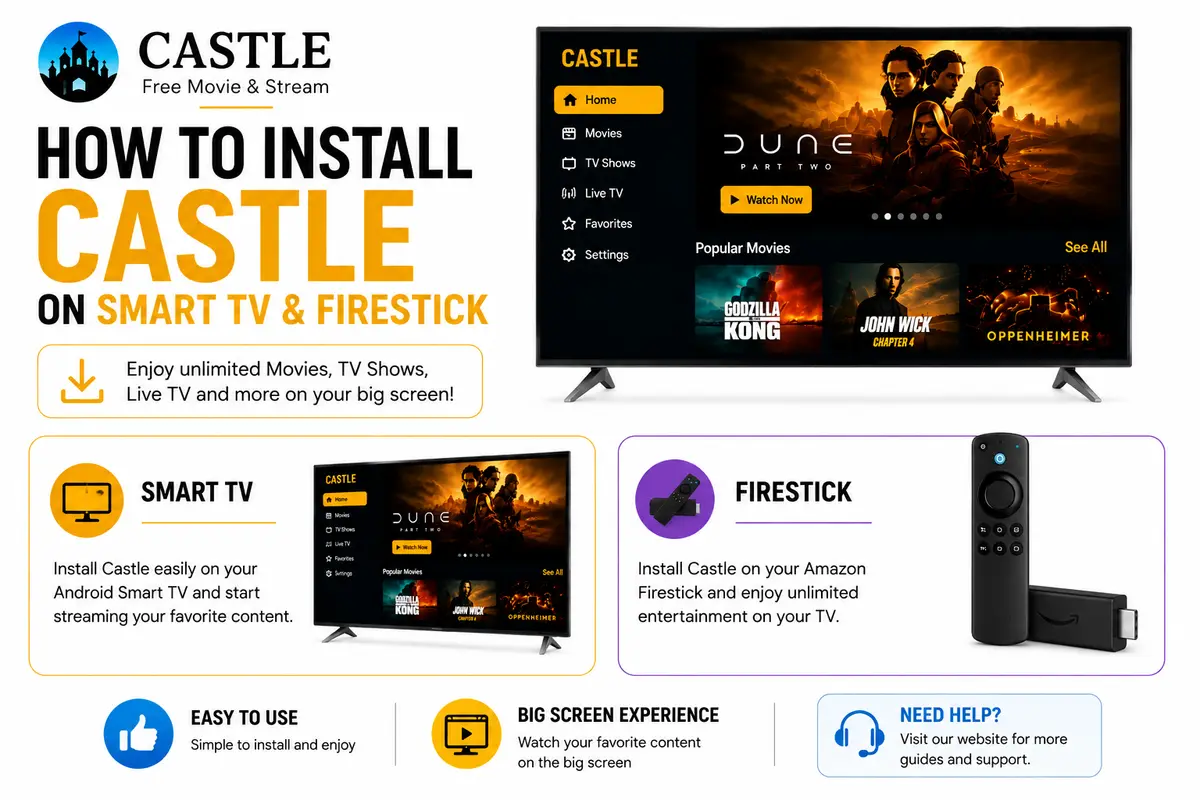
The Downloader app is one of the easiest ways to install Castle on TV. It lets you download the APK file directly to your Android TV or FireStick without using another device.
Open the Google Play Store on Android TV or the Amazon App Store on FireStick. Search for Downloader, then download and install the app on your device.
Open the Downloader app, enter the official Castle download link, and start the download. Wait until the APK finishes downloading on your TV or FireStick.
When the download finishes, the installation screen appears automatically. Select Install and wait for the process to complete. Once the installation is finished, select Open to launch Castle on your TV and start streaming.
If your Android TV does not have the Downloader app or you prefer another method, you can install Castle for TV with a USB drive. This method works on many Android TVs and Android TV boxes that support APK installation.
Download the latest Castle APK on your computer. Copy the APK file to a USB drive and safely remove the drive from your computer.
Plug the USB drive into an available USB port on your Android TV or Android TV box. Wait a few seconds for the device to detect the drive.
Open a File Manager app on your TV and find the Castle APK on the USB drive. Select the file and choose Install. If your TV asks for permission to install apps from unknown sources, allow the request and continue with the installation.
After the installation is complete, open Castle from your apps list and begin using it on your TV.
After installing Castle for TV, a few simple adjustments can improve your viewing experience. These tips can help you move through the app more easily and keep it running smoothly over time.
Castle is designed to work with standard Android TV and Fire TV remotes. Use the directional buttons to move through menus and press the OK button to select an option. The Back and Home buttons help you switch between screens without closing the app.
Over time, the app stores temporary files to improve loading speeds. If Castle becomes slow or does not respond as expected, clearing the cache can help.
Open Settings, go to Apps, select Castle, then open Storage and choose Clear Cache. This removes temporary files without deleting the app or your saved settings. Clearing the cache from time to time can help keep the app running smoothly, especially on TVs with limited storage space.
Bring your entertainment to the big screen with Castle for TV. Follow the steps in this guide to install the app on your compatible TV or streaming device in just a few minutes.
Download the latest Castle TV APK v2.1.3 today and enjoy a smooth viewing experience on your Smart TV or FireStick.
No. Castle for TV is designed for Android-based devices and is not available as a native app for Samsung Tizen or LG webOS. To use Castle on these televisions, you can connect a compatible Android TV device or Fire TV device that supports APK installation.
Castle can play content in high quality when it is available. The maximum playback quality also depends on your TV, your streaming device, and the speed of your internet connection. A stable connection helps provide smoother video playback.
If playback stops because of a network issue, check your Wi-Fi connection first. Restart your router if needed, then reconnect your TV or streaming device to the network. Opening the app again after the connection is restored can also help.
If your television already runs Android TV, you can install the APK directly. If your TV uses another operating system, such as Samsung Tizen or LG webOS, you will need a compatible Android TV box or Fire TV device to run the app.
When a new version is available, download the latest Castle APK from the official website using your preferred installation method. Install the updated APK over the existing version. In most cases, the app updates without removing your current installation.